UNLOCK THE FULL ZEN SCRIPT LIBRARY
Access 2,200+ Scripts Today!

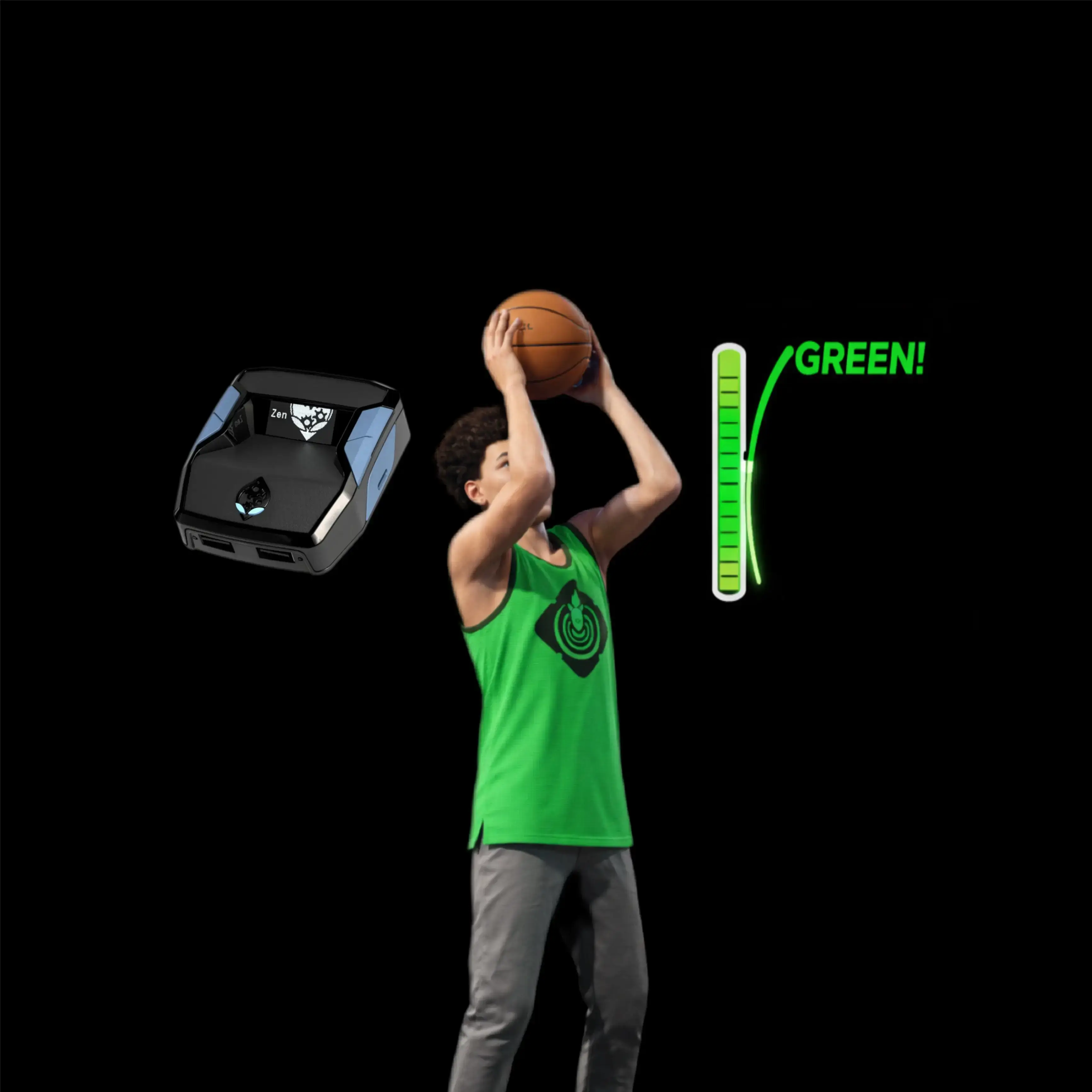









Luna Elite – Fortnite Cronus Zen Script

Script details
- Game
- Fortnite
- Creator
 Scarface Zens
- Access
- ultimate
- Download format
- .ZNBK
- Supported platforms
- cross-platform
- Listing updated
Luna Elite is a Fortnite Zen script by Scarface Zens. Explore its download and setup information below.
Luna Elite Fortnite
Get tighter tracking and flatter recoil in Fortnite from your first match. Luna combines aim-assist enhancements, anti-recoil, edit macros, rapid fire, pickup automation and more, with a guided setup that gets you running in minutes.
Aim Assist
Aim That Stays On Target
Boosted aim assist across the full range, from close-range box fights to mid-range beams and long-range shots.
- Stronger aim assist
- Smoother tracking
- Silent Aim
- Linear and Exponential support
- Designed for more consistent tracking in every fight
Edit Macro
Three Edit Modes. One Bind.
Hold your chosen Edit Macro bind and Luna handles the sequence for you.
- Spam Mode – continuously cycles edit and confirm
- Drag Mode – holds the selection so larger edits can be completed in one sweep
- Reset Mode – resets builds with a single button press
- Adjustable edit speed
- Assignable to any button
Anti-Recoil
Flatter Recoil, Every Fight
Reduce recoil while firing to keep ARs and SMGs steadier during sustained fights.
- Flatter sprays
- Steadier AR and SMG control
- More consistent aim while firing
- Works alongside Luna's aim-assist features
Pickup Macro
Loot In One Hold
Hold your chosen pickup input and Luna repeatedly activates it, helping you clear floor loot without constant tapping.
- Turbo pickup while held
- Faster floor-loot collection
- Assignable to any input
Rapid Fire
Sustained Fire On Hold
Hold your fire trigger and Luna continuously pulses the input at your selected rate. Output begins immediately on the trigger pull and automatically pauses while you are in maps or menus.
Listed as Auto Clicker in the on-device menu.
- Rapid fire while held
- Adjustable firing rate
- Activates immediately on trigger pull
- Automatically pauses in maps and menus
Additional Features
- Crouch macros for faster movement during close-range fights
- Hair triggers for quicker input activation
- Customisable button binds
- Automatic pausing while menus are open
- Customisable Zen screen appearance
- Built-in on-device menu
- Adjust settings directly from the Cronus Zen without needing a PC
Features

Mod Menu

Values

Guides
Guides
How to Install the Script
- Open Zen Studio Live and connect your Cronus Zen
- Go to the 'Device Slots' tab
- Click 'Restore' at the top middle
- Select the file and the slot to install the script to
Recommended Values
- Aim Boost: 10
- Auto-Assist: OFF
- Silent Aim: 7
- Silent Hip: 5
Installation & setup
Download the Zen Backup (.znbk) using your account’s available download action, then restore it with the steps below.
-
Connect your Cronus Zen
Open Zen Studio Live in Chrome or Edge.
- Connect your Cronus Zen through the PROG port and select 'Connect Device'.
-
Open the Device Slots tab
Go to the Device Slots tab in Zen Studio Live. This is where Zen Backups (.znbk) are restored to the Zen memory slots.
-
Click Restore
Click the button at the top middle of the Device Slots screen.
-
Select your Zen Backup (.znbk)
Choose the Zen Backup (.znbk) you want to install, then confirm the file selection when your browser asks.
-
Restore the script
Select the script inside the Zen Backup (.znbk), then click Restore. Zen Studio Live restores it to the same device slot it was backed up from.
-
Move the slot and program the Zen
Move the restored script to a different slot if you want. When the layout is ready, click the flashing orange button to save the Zen Backup to your Cronus Zen.
Keep the Cronus Zen connected until programming is fully complete. Unplugging the Zen while it is writing can interrupt the restore and leave the slot incomplete.
-
Connect, select your slot and test
After programming finishes, connect the Zen to your console or PC using your platform’s connection setup. Select the installed script’s slot, then follow the creator’s button layout and starting values. Test before changing settings, and adjust one value at a time.
Need help with setup?
If the Zen is not detected, check the PROG connection and use a USB cable that supports data. If a GPC file fails to compile, check that the download is complete and that it supports your version of Zen Studio.
Luna Elite: common questions
How do I install Luna Elite?
This download is a Zen Backup (.znbk). Follow the numbered installation instructions above to restore it to your device. Back up existing slots before restoring a backup.
What access do I need for Luna Elite?
This script is listed in the ultimate library. Sign in with a plan that includes this tier; your download button shows the access available to your account.
Where can I find settings for Luna Elite?
The creator’s guide is included on this page. The Recommended Values section contains the creator’s starting values. Sign in with the required access to view them, and match the script to your in-game settings before making adjustments.