UNLOCK THE FULL ZEN SCRIPT LIBRARY
Access 1,500+ Scripts Today!
2k24 Auto Green v1.4
Script City

2k26 AI
Avenged

2k26 Auto Green V2
BoostSquad
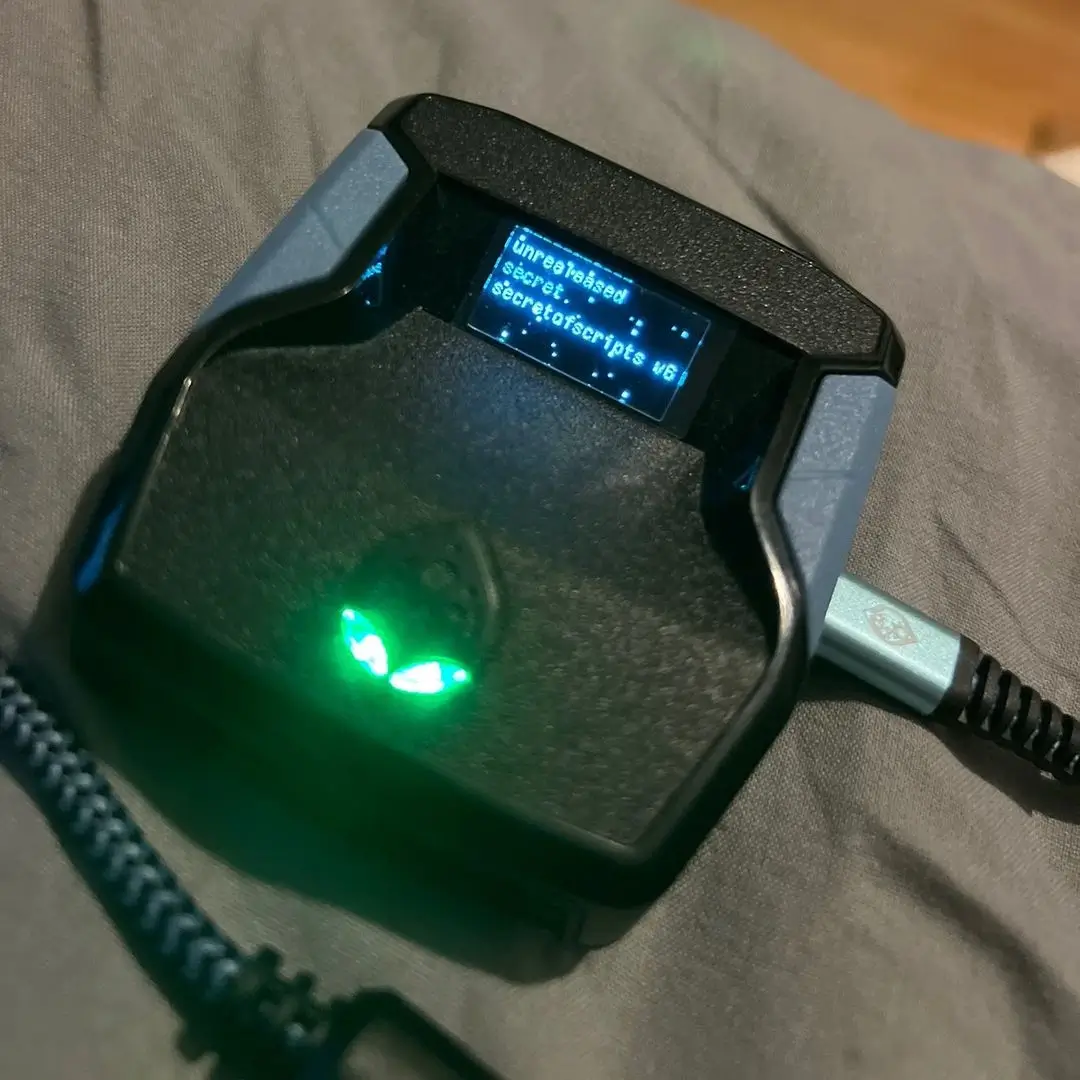
2k26 Lag Switch
Secret of Scripts
Exodus V3
Cronus Zen Master
Evilbot V5
Cronus Zen Master
2k24 Auto Green v1.4
Script City
2k26 AI
Avenged
2k26 Auto Green V2
BoostSquad
2k26 Lag Switch
Secret of Scripts

2K Plus
Yew
Script details
FEATURES / MODS
- Shot Visual Cue
- Auto Green AI
- Auto Green MS
- Tempo AI
- Tempo MS
- AI Strength Adjustment
- Square Remap
- Infinite Stamina
- Quickstop
- Customizable Dribble Mods
- Meter Dunk
- Release Vibrator
- No-Dip Shots
- Turbo Shots
- +MORE!
Features

guides
Mod Menu
Multiple Versions
Recommended by us
Values
Guides
1) What this script does (in plain terms)
2K AI helps with:
- More consistent shooting rhythm / stick movement (especially for rhythm shooting)
- Auto Green timing (when enabled, it can “time” the release for you based on your set MS)
- Tempo / quickstop assistance
- Optional dribble sequences
- Optional meter dunk hold
- Helpful vibration “release cue”
- Quality-of-life features like instant triggers, stamina control, etc.
Important note: Even with the script, you still need the right jumpshot and timing values for your player/build. The script helps consistency, but your settings matter.
2) How to turn the script ON / OFF (quick)
These are emergency toggles if something feels wrong mid-game.
- Turn OFF: Hold Xbox button + LT / PS Button + L2
- Turn ON: Hold Xbox button + RT / PS Button + R2
3) How to open and use the menu
Open / Close the menu
- Xbox: Hold LT and press MENU
- PlayStation: Hold L2 and press OPTIONS
You’ll feel a vibration and the Zen OLED will switch into the menu.
Menu controls
- D-Pad RIGHT / LEFT: move between pages
- D-Pad UP / DOWN: change the setting on the current page
- A (Xbox) / X (PlayStation): Select (only used on Dribble CUSTOM to open the custom dribble submenu)
Exit the custom dribble submenu
- B (Xbox) / Circle (PlayStation)
5) Full Menu Page List (every page + what it does)
The script has 20 pages. Here’s what each one controls:
Page 0 — Shot Visual Cue
- What it does: Sets the “release cue type” you’re aiming for
- Options: JUMP, SET POINT, PUSH, RELEASE
- Best beginner choice: Start with RELEASE
- Use D-Pad Up/Down to cycle
Page 1 — Auto Green AI+
- What it does: Turns Auto Green on/off
- OFF: You manually time everything
- ON: Script helps time the shot release using your Auto Green MS (Page 2)
- Beginner advice: Start ON with the MS values from the guide and adjust slowly
Page 2 — Auto Green MS
- What it does: Sets the main timing (in milliseconds) used by Auto Green
- Range: 100–1000 ms
- How to change faster: Hold L2/LT while pressing Up/Down
- Beginner advice: Use the build guide’s Release Vibrator MS ranges as a reference, then fine tune
Page 3 — Tempo AI+
- What it does: Turns tempo assistance on/off
- Helps keep your tempo consistent during shooting actions
- Beginner advice: Start ON
Page 4 — SQ is mapped to (Button Rhythm mapping)
- What it does: Only matters if you’re using the script’s Square/X rhythm method setting
- Options: L3/LS, R3/RS, SQ/X
- Simple explanation: Controls which button acts like the shoot trigger in certain rhythm setups
- Beginner advice: Leave it alone until you’re confident
Page 5 — RS Auto Tempo
- What it does: Turns right-stick tempo support on/off
- OFF: No stick tempo help
- ON: Stick shooting tempo assistance becomes active
- Beginner advice: Keep ON if you shoot with the right stick
Page 6 — Tempo MS
- What it does: Controls the delay timing used for tempo actions
- Range: 5–200 ms
- Beginner advice: Stay near recommended values and adjust only if shots feel early/late
Page 7 — Infinite Stamina
- What it does: Helps with stamina / movement consistency
- OFF / ON
- Beginner advice: If movement feels heavy or weird, turn OFF first
Page 8 — Instant Quickstop
- What it does: Enables a quickstop style behavior
- Options: OFF, R2 + SQ (PS) / R2 + X (Xbox)
- Beginner advice: Leave OFF unless you want quickstop help
Page 9 — Dribble Mode
- What it does: Controls the dribble system
- Options: OFF, AUTO, CUSTOM
- AUTO: D-pad triggers preset dribble sequences
- CUSTOM: You pick what each D-pad direction does
- To open Custom Dribble Menu: Press A/X when set to CUSTOM
Page 10 — Defense AI+
- What it does: Adds a small defensive assist when holding L2 + R2 (PS) or LT + RT (Xbox)
- Beginner advice: Keep OFF if you want pure defense control
Page 11 — Meter Dunk
- What it does: Helps with meter dunk by holding inputs for you
- Options: OFF, L1/LB, Circle/B
- Beginner advice: Start OFF unless you use meter dunks often
Page 12 — Release Vibrator
- What it does: Turns the vibration cue on/off
- OFF / ON
- Beginner advice: Turn ON
Page 13 — Vibrator MS
- What it does: Sets when the vibration cue happens
- Range: 200–1000 ms
- Guards: 430–460
- Wings: 450–480
- Bigs: 470–480
Page 14 — No-Dip Shots
- What it does: Enables no-dip shot help using L2 + Square (PS) / LT + X (Xbox)
- Beginner advice: Keep OFF until comfortable
Page 15 — Turbo Shots
- What it does: Enables turbo shot styles
- Options: OFF, HOP JUMPER, TURBO FADE
- Beginner advice: Leave OFF until base shooting is consistent
Page 16 — Spot Take Macro
- What it does: Repeats the spot-take input
- Options: OFF, HOLD X (PS) / HOLD A (Xbox)
- Beginner advice: Enable only if you use spot takes
Page 17 — Instant Triggers
- What it does: Makes triggers activate at full press instantly
- OFF / ON
- Beginner advice: Turn OFF if it feels too sensitive
Page 18 — Overclock AI+
- What it does: Performance / response mode toggle
- OFF / ON
- Beginner advice: If anything feels unstable, turn OFF first
Page 19 — ZEN Color
- What it does: Changes Zen LED/OLED color
- Options: YELLOW, PURPLE, BLUE, GREEN, WHITE
6) Custom Dribble Menu (only when Dribble Mode = CUSTOM)
- On Page 9, set Dribble Mode to CUSTOM
- Press A/X to open the custom dribble menu
Custom Dribble Pages
- Dribble UP
- OFF / BTB SPAM / CURRY / D BOOK
- Dribble DOWN
- OFF / BTB SPAM / CURRY / D BOOK
- Dribble LEFT
- OFF / B BREAK / ESCAPE / MOMENTUM
- Dribble RIGHT
- OFF / B BREAK / ESCAPE / MOMENTUM
- Use D-Pad Left/Right to switch pages
- Use D-Pad Up/Down to change moves
- Exit with B / Circle
7) Beginner “Best Setup” checklist (fast)
- Shot Visual Cue: RELEASE
- Auto Green AI+: ON
- Auto Green MS: Start near your build’s vibration MS and fine tune
- Tempo AI+: ON
- RS Auto Tempo: ON (if you stick shoot)
- Release Vibrator: ON
- Vibrator MS: Use your build range
- Leave OFF until later: No-Dip Shots, Turbo Shots, Meter Dunk, Dribble
8) Troubleshooting (common issues)
My shots are late/early
- Adjust Auto Green MS (Page 2) in small steps (1–5 ms)
- Confirm Shot Visual Cue matches your jumper (guide uses RELEASE)
Menu won’t open
- Hold LT/L2, then press Menu/Options
- Make sure the script isn’t toggled OFF
Movement feels weird
- Turn Infinite Stamina (Page 7) OFF and test
My controller feels too sensitive
- Turn Instant Triggers (Page 17) OFF