
UNLOCK THE FULL ZEN SCRIPT LIBRARY
Access 2,200+ Scripts Today!

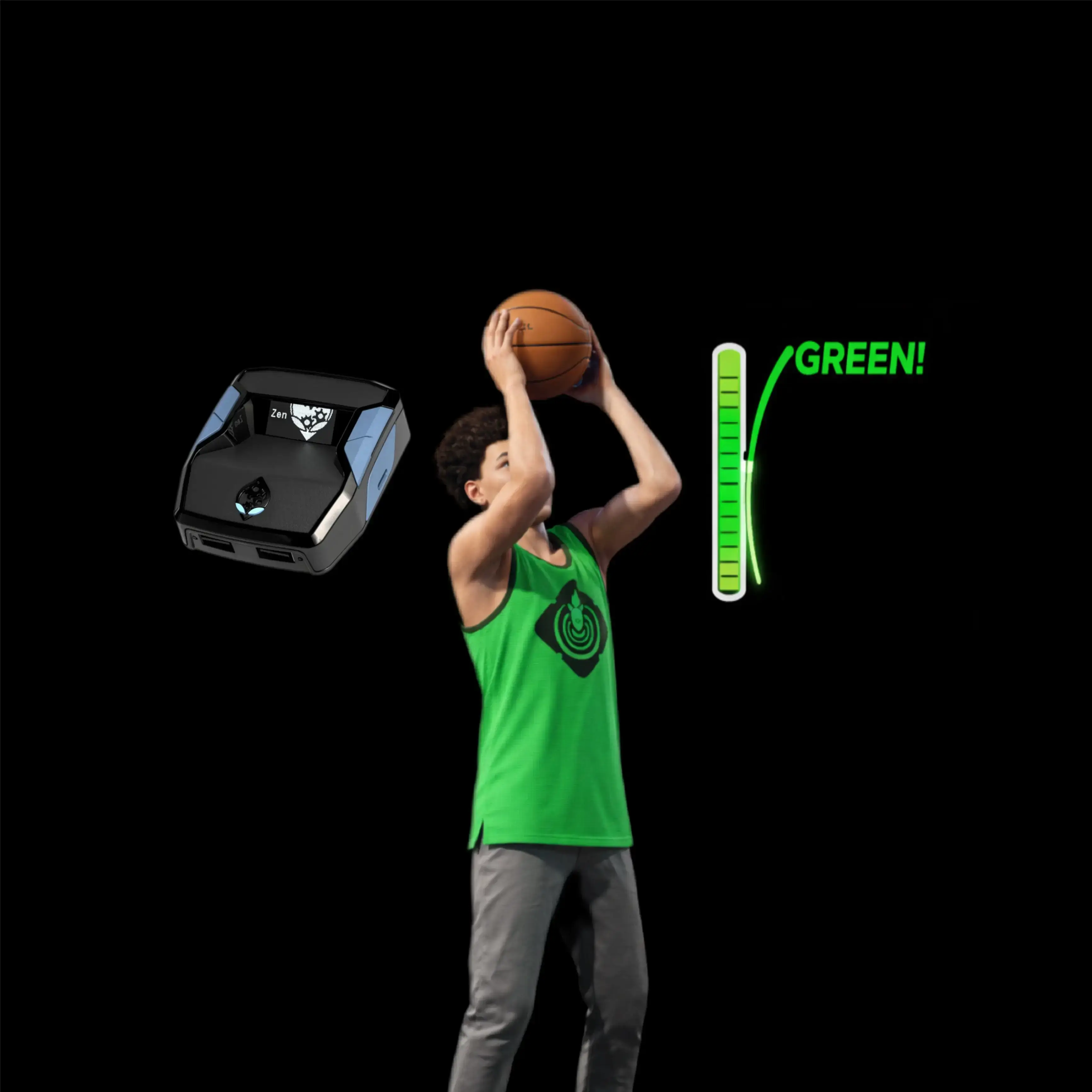










iScript 2k26 Remix – NBA 2k26 Cronus Zen Script


Features

Recommended by us

Guides
Guides
iScript 2nd Gen – NBA 2K26 v1.0.0
Dribble Combo Script
- Toggle On/Off
- Hold L1 + R1 to activate or deactivate the dribble combo script.
- When active, D-Pad buttons no longer function normally — they trigger dribble moves.
- Dribble Moves
- Right D-Pad (ball in right hand): Escape spam (right side).
- Left D-Pad (ball in left hand): Escape spam (left side).
- Down D-Pad: Behind-the-back spam.
- Up D-Pad: Combo spam of all moves.
Tip: You can assign your own dribble moves to specific D-Pad arrows in the compiler.
Custom Delay Settings
- Locate this line in the code:
- int DELAY_DURATION = 59; // Delay before flicking up (in milliseconds)
- Modify DELAY_DURATION to your preferred delay time (in ms).
- This lets you fine-tune shooting rhythm and tempo to your preference.
Code Customization
- Script is fully customizable.
- Adjust button mappings and delay settings as needed.
- Code is well-commented and beginner-friendly.
Important: When script is active, L3 becomes your new Square/X button.
- Use L3 for steals or shooting without the mod.
Toggles
- At the top of the script you’ll find toggle options for:
- Dribble function
- Shot tempo function
- Both are enabled by default (1).
- To disable, set the toggle value to 0.
Dunk Timing Feature
- Press and hold L1 while going in for a dunk.
- Script automates the right stick input, but you must still time the dunk manually.
- This feature reduces stick movement, making dunks easier to execute.
Installation & setup
Follow these steps to install the GPC download on your Cronus Zen.
-
Download the script
Use the download button on this page and save the .gpc file to your computer.
-
Connect your Cronus Zen
Open Zen Studio Live in Chrome or Edge.
- Connect your Cronus Zen through the PROG port and select 'Connect Device'.
-
Open the script in the Editor tab
Drag the downloaded .gpc file into the 'Editor' tab.
-
Add the script to a device slot
Go to the Device tab, select MY SCRIPTS at the top right, then drag the chosen .gpc file into an empty slot.
-
Program the Cronus Zen
Click the flashing orange Program button at the top to save the script to your Zen.
-
Connect, select your slot and test
After programming finishes, connect the Zen to your console or PC using your platform’s connection setup. Select the installed script’s slot, then follow the creator’s button layout and starting values. Test before changing settings, and adjust one value at a time.
Need help with setup?
If the Zen is not detected, check the PROG connection and use a USB cable that supports data. If a GPC file fails to compile, check that the download is complete and that it supports your version of Zen Studio.
iScript 2k26 Remix: common questions
How do I install iScript 2k26 Remix?
This download is a GPC script. Follow the numbered instructions above to open it in Zen Studio, assign a device slot and program your Zen.
What access do I need for iScript 2k26 Remix?
This script is listed in the basic library. Sign in with a plan that includes this tier; your download button shows the access available to your account.
Where can I find settings for iScript 2k26 Remix?
The creator’s guide is included on this page. Sign in with the required access to view them, and match the script to your in-game settings before making adjustments.