
UNLOCK THE FULL ZEN SCRIPT LIBRARY
Access 2,200+ Scripts Today!

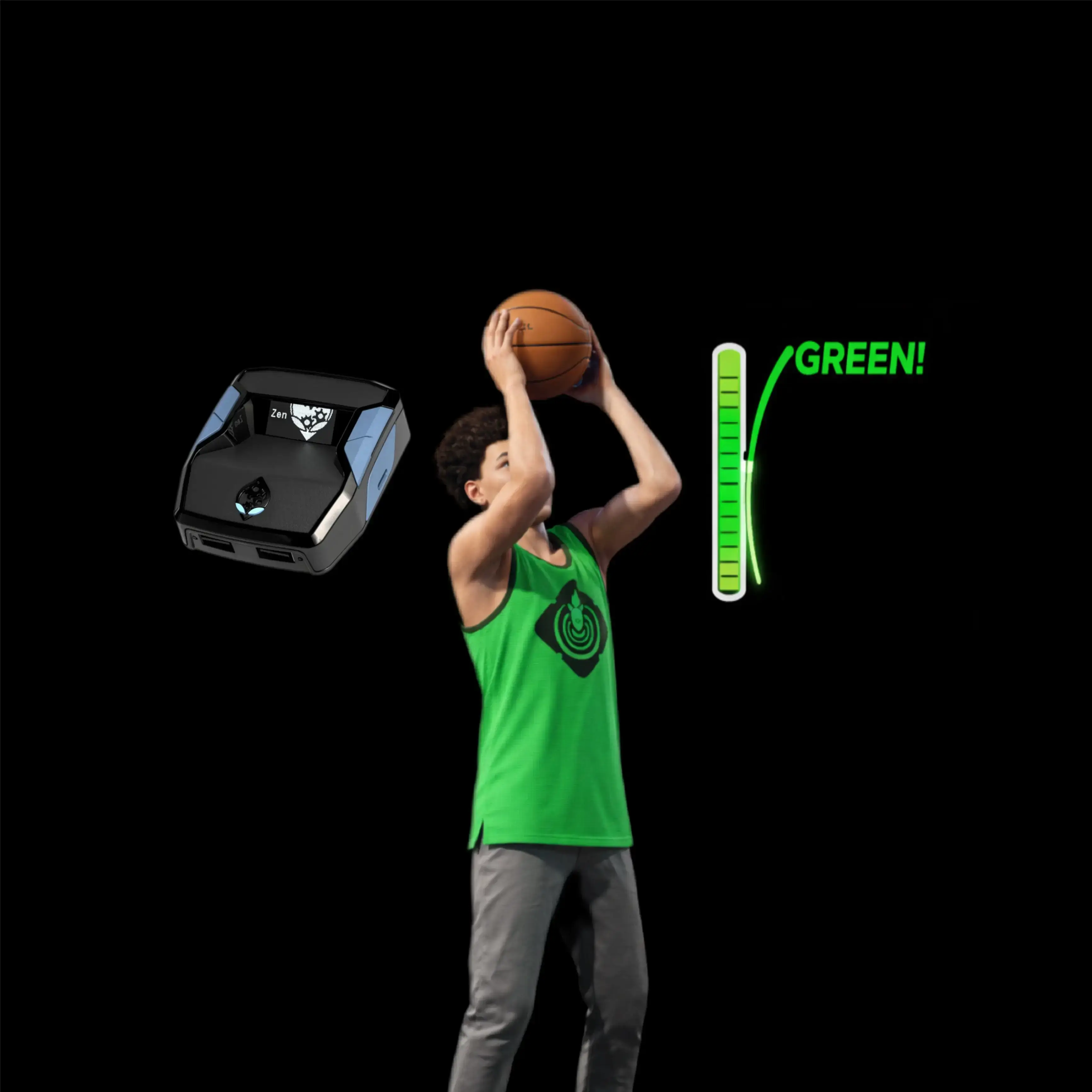











SwishLabs – NBA 2k26 Cronus Zen Script

Script details
- Game
- NBA 2k26
- Creator
 Sosa Scripts
- Access
- ultimate
- Download format
- .GPC
- Supported platforms
- cross-platform
- Listing updated
SwishLabs is a NBA 2k26 Zen script by Sosa Scripts. Explore its download and setup information below.
The only auto-green NBA 2K26 Cronus Zen script!
Enjoy perfect shooting, dribble macros, automatic moves, defensive locks, and our exclusive auto-green.
Built for NBA 2K26's new shooting system. Pay once, play forever!
Shooting has never been easier
You thought scoring was enough? No… this is the best script, it has everything.
- NEW: Auto Green
- The only NBA 2K26 Cronus Zen script with auto-green. Perfect your shot for anywhere on the court — then green it with just 1-click, every single time.
- Ultra Tempo Manipulation
- Allows you to tempo-shoot with your button! Experience our brand-new ulta version for extra accuracy!
An overpowered offense
Offensive features to give you an advantage in every game — now available in SwishLabs 2.0.
- Dribble Combos
- Perform intense dribble combos with ease! You'll be crossing everyone
- Insta-Stop
- The fastest quick-stop animation possible! Instantly sink your shots
- Turbo Shots
- Choose your preference and green it every time!
An unstoppable defense
You thought scoring was enough? No… this is the best script, it has everything.
- Auto Lockdown
- This isn't "cheating", it just feels like it. Press and hold on your left trigger to send every attacker into lockdown!
- Mod Menu
- Our mod menu contains everything — toggle mods and change values at any time.
Features

Mod Menu
Installation & setup
Follow these steps to install the GPC download on your Cronus Zen.
-
Download the script
Use the download button on this page and save the .gpc file to your computer.
-
Connect your Cronus Zen
Open Zen Studio Live in Chrome or Edge.
- Connect your Cronus Zen through the PROG port and select 'Connect Device'.
-
Open the script in the Editor tab
Drag the downloaded .gpc file into the 'Editor' tab.
-
Add the script to a device slot
Go to the Device tab, select MY SCRIPTS at the top right, then drag the chosen .gpc file into an empty slot.
-
Program the Cronus Zen
Click the flashing orange Program button at the top to save the script to your Zen.
-
Connect, select your slot and test
After programming finishes, connect the Zen to your console or PC using your platform’s connection setup. Select the installed script’s slot, then follow the creator’s button layout and starting values. Test before changing settings, and adjust one value at a time.
Need help with setup?
If the Zen is not detected, check the PROG connection and use a USB cable that supports data. If a GPC file fails to compile, check that the download is complete and that it supports your version of Zen Studio.
SwishLabs: common questions
How do I install SwishLabs?
This download is a GPC script. Follow the numbered instructions above to open it in Zen Studio, assign a device slot and program your Zen.
What access do I need for SwishLabs?
This script is listed in the ultimate library. Sign in with a plan that includes this tier; your download button shows the access available to your account.