UNLOCK THE FULL ZEN SCRIPT LIBRARY
Access 2,000+ Scripts Today!













Nets – NBA 2k26 Cronus Zen Script
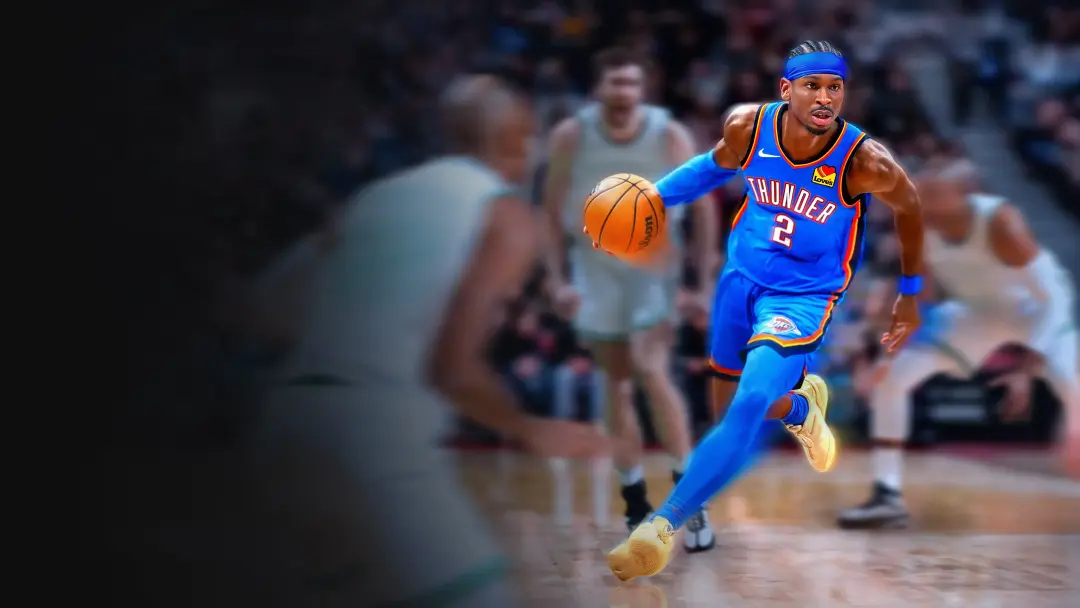
Script details
- Game
- NBA 2k26
- Creator
 Scripting Base
- Access
- premium
- Download format
- .GPC
- Supported platforms
- cross-platform
- Listing updated
Nets is a NBA 2k26 Zen script by Scripting Base. Explore its download and setup information below.
This is a Nba 2k26 Cronus Zen Script developed by Scripting Base.
Includes mods:
- Auto Green
- Defense+
- Dribble Combos
- Ez Sqr/X Shot
- Infinite Stamina
- Instant Triggers
- Meter Dunk
- No Dip Shot
- Quick Stop
- Quick Stop Mode
- Remap Square
- Rs Auto
Features

Guides

Mod Menu
Guides
30-Second Green Timer Calibration (NBA 2K Zen Script)
STEP 1 — Stable Setup
• Same court / same mode (MyCourt or same Park)
• SHOT CUE = PUSH
• AUTO-GREEN = ON
• Same jumpshot animation
• Full stamina
• No moving shots
Starting Values
• GREEN TIMING = 112
• TEMPO TIMING = 18
STEP 2 — Take 5 Test Shots
• Shoot exactly 5 standstill shots
Result Meaning
• Mostly Slightly Early → Timing too fast
• Mostly Slightly Late → Timing too slow
• Random Early/Late mix → Delay issue
• 3–5 Greens → Nearly perfect
STEP 3 — Micro Adjustment
• If shots are Early → GREEN TIMING +3
• If shots are Late → GREEN TIMING -3
• If strongly Early/Late → Adjust ±5
• Shoot another 5 shots and repeat if needed
TEMPO TIMING (Fine-Tune)
• Random Late shots → TEMPO +2
• Random Early shots → TEMPO -2
• GREEN TIMING = release position
• TEMPO TIMING = server delay compensation
Pro Calibration Method
• 1. 5 shots at 112
• 2. 5 shots at 118
• 3. 5 shots at 106
• Choose the value with the most greens, then fine tune ±2
SETTINGS EXPLANATIONS
1. BUILD SELECT
• Purpose: Manage multiple player build configurations
• Function: Store and load unique settings for 3 different builds
• Use Case: Perfect for switching between Guard, Forward, and Center builds
2. SHOT CUE
• JUMP / SET POINT / PUSH / RELEASE
3. Easy Sqr/X Shot
• ON: Assisted shooting rhythm for automatic timing
4. TEMPO TIMING
• Range: 1–50ms delay adjustment
5. AUTO-GREEN
• ON: Automated perfect release timing
• OFF: Manual timing required
6. GREEN TIMING
• Range: 0–200ms window adjustment
• Precision: Micro-adjustments for connection-specific optimization
7. SQUARE/X REMAP
• Left Stick: Map shooting to L3 click
• Right Stick: Map shooting to R3 click
8. RS AUTO
• ON: Right stick movements trigger automatic shots
• OFF: Standard right stick functionality
9. TURBO MODE
• Hop Jumper
• Turbo Fade
• OFF
10. DEFENSE+
• ON: Enhanced defensive positioning and auto-steal assistance
• OFF: Default defensive controls
11. QUICKSTOP
• OFF: No quick stop assistance
• AUTO QS: Automatic quick stops during movement
• Purpose: Create immediate separation for jump shots
12. DUNK METER
• OFF: Standard dunk timing
• L1: Dunk meter activation with L1 button
• CIRCLE: Dunk meter activation with Circle/B button
• Function: Perfect timing assistance for contact dunks
13. UNLIMITED STAM
• ON: Infinite stamina pool
• OFF: Standard stamina consumption
14. SHOT RUMBLE
• ON: Haptic feedback at optimal release point
• OFF: No vibration feedback
• Training Tool: Physical cue for learning release timing
15. RUMBLE TIMING
• Range: 200–1000ms duration
• Customization: Adjust vibration length to match your preference
16. NO-DIP TOGGLE
• ON: Skip shot dip animation for faster releases
• OFF: Complete shooting animation
• Competitive Edge: Eliminate visual tells for harder-to-block shots
17. NO-DIP TIMING
• Range: 250–450ms timing window
• Precision: Fine-tune the dip elimination for specific jump shots
18. DRIBBLE UP
19. DRIBBLE DOWN
20. DRIBBLE LEFT
21. DRIBBLE RIGHT
• Options: OFF | BTB Spam | Curry | DBook | B Break | Escape | Momentum
• Function: Signature dribble packages mapped to D-pad directions
• Pro Animations: Authentic NBA player signature moves
22. INSTANT TRIGGERS
• ON: 0ms response time on L2/R2 triggers
• OFF: Standard controller trigger curves
• Performance: Immediate defensive slides and shot contests
23. OVERCLOCK
• ON: Enhanced controller polling rate
• OFF: Standard controller performance
• Benefit: Reduced input latency for competitive play
24. LED COLOR
• Options: YELLOW | PURPLE | BLUE | GREEN | WHITE | RAINBOW
• Function: Visual status indicator for mod activation
• Aesthetic: Customizable lighting for personal preference
CONTROLS & NAVIGATION
• MENU ACCESS: Hold L2 + Options/Menu buttons simultaneously
• NAVIGATION: Use D-pad or Left Stick to move through settings
• VALUE ADJUSTMENT: Press X/A to increase, hold for rapid changes
• SETTING SELECTION: X/A to confirm or toggle options
• MENU EXIT: Circle/B button (saves all changes automatically)
Installation & setup
Follow these steps to install the GPC download on your Cronus Zen.
-
Download the script
Use the download button on this page and save the .gpc file to your computer.
-
Connect your Cronus Zen
Open Zen Studio Live in Chrome or Edge.
- Connect your Cronus Zen through the PROG port and select 'Connect Device'.
-
Open the script in the Editor tab
Drag the downloaded .gpc file into the 'Editor' tab.
-
Add the script to a device slot
Go to the Device tab, select MY SCRIPTS at the top right, then drag the chosen .gpc file into an empty slot.
-
Program the Cronus Zen
Click the flashing orange Program button at the top to save the script to your Zen.
-
Connect, select your slot and test
After programming finishes, connect the Zen to your console or PC using your platform’s connection setup. Select the installed script’s slot, then follow the creator’s button layout and starting values. Test before changing settings, and adjust one value at a time.
Need help with setup?
If the Zen is not detected, check the PROG connection and use a USB cable that supports data. If a GPC file fails to compile, check that the download is complete and that it supports your version of Zen Studio.
Nets: common questions
How do I install Nets?
This download is a GPC script. Follow the numbered instructions above to open it in Zen Studio, assign a device slot and program your Zen.
What access do I need for Nets?
This script is listed in the premium library. Sign in with a plan that includes this tier; your download button shows the access available to your account.
Where can I find settings for Nets?
The creator’s guide is included on this page. Sign in with the required access to view them, and match the script to your in-game settings before making adjustments.