UNLOCK THE FULL ZEN SCRIPT LIBRARY
Access 2,200+ Scripts Today!













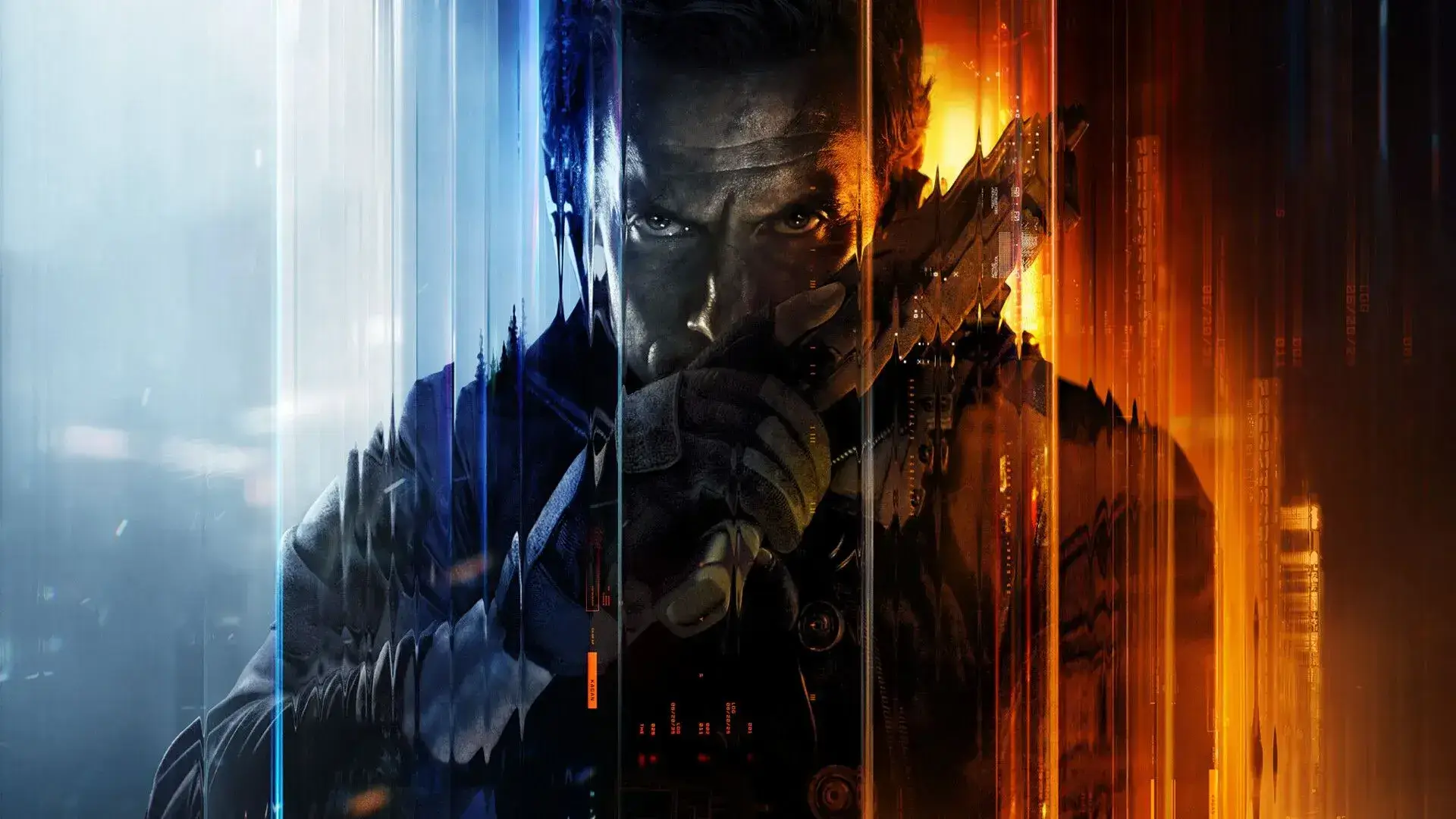
Dead Eye – Call of Duty: Black Ops 7 Cronus Zen Script
Script details
- Creator
 Vertex Zens
- Access
- ultimate
- Download format
- .GPC
- Supported platforms
- cross-platform
- Listing updated
Dead Eye is a Call of Duty: Black Ops 7 Zen script by Vertex Zens. Explore its download and setup information below.
Dead Eye Overview
Dead Eye is the COD-specific Cronus Zen script tuned by Mr maneuver — a full aim, fire, and movement toolkit you control entirely from the Zen’s OLED screen.
Every recoil profile, aim assist preset, and movement mod is dialled in for the current Call of Duty meta.
Auto-detects PS4, PS5, and Xbox controllers on flash. Comes with a free setup guide and pre-tuned starter values so you can flash, plug in, and play within minutes.
What’s Included
- Auto-detected OLED menu — tune everything on-device
- Setup guide + pre-tuned starter values
- AI support bot
- Priority Discord support
- 38 controller mods
Dead Eye
Premium AI-optimized COD script — on-device OLED tuning, full aim suite, fire mods, movement tools.
PlayStation + Xbox auto-detect, no PC required.
Every lobby you skip is another K/D point you don’t get back.
Seven Mod Families. Thirty-Eight Mods. One OLED.
7 mod families · 38 mods total
Aim Enhancement - 10 mods
Firing Mods - 4 mods
Shot Mods - 4 mods
More Mods - 4 mods
Sniper / Handgun Mode - 4 mods
Controller - 3 mods
Quick Toggles (on-the-fly) - 9 mods
Frequently Asked Questions
Will I get banned for using Dead Eye?
Activision’s anti-cheat does not currently detect Cronus Zen on console — Dead Eye runs on the Zen itself, not your console. Their Code of Conduct still treats input automation as a TOS violation, so keep usage modest in Ranked and avoid blatant unattended grinds.
Does this work on PlayStation AND Xbox?
Yes — Dead Eye auto-detects PS4, PS5, and Xbox controllers on flash. The script switches behaviour transparently — same .gpc, no manual swap, no second purchase.
What do I need to use Dead Eye?
Just a Cronus Zen (any model) and a compatible PS4/PS5/Xbox controller.
The script runs entirely on the Zen — no extra software or PC needed during gameplay.
How do I adjust settings?
Everything is controlled through the Cronus Zen’s built-in OLED screen.
Navigate menus, toggle mods, and edit values directly from your controller — no PC needed once flashed.
Features

Mod Menu
Installation & setup
Follow these steps to install the GPC download on your Cronus Zen.
-
Download the script
Use the download button on this page and save the .gpc file to your computer.
-
Connect your Cronus Zen
Open Zen Studio Live in Chrome or Edge.
- Connect your Cronus Zen through the PROG port and select 'Connect Device'.
-
Open the script in the Editor tab
Drag the downloaded .gpc file into the 'Editor' tab.
-
Add the script to a device slot
Go to the Device tab, select MY SCRIPTS at the top right, then drag the chosen .gpc file into an empty slot.
-
Program the Cronus Zen
Click the flashing orange Program button at the top to save the script to your Zen.
-
Connect, select your slot and test
After programming finishes, connect the Zen to your console or PC using your platform’s connection setup. Select the installed script’s slot, then follow the creator’s button layout and starting values. Test before changing settings, and adjust one value at a time.
Need help with setup?
If the Zen is not detected, check the PROG connection and use a USB cable that supports data. If a GPC file fails to compile, check that the download is complete and that it supports your version of Zen Studio.
Dead Eye: common questions
How do I install Dead Eye?
This download is a GPC script. Follow the numbered instructions above to open it in Zen Studio, assign a device slot and program your Zen.
What access do I need for Dead Eye?
This script is listed in the ultimate library. Sign in with a plan that includes this tier; your download button shows the access available to your account.
Where can I find settings for Dead Eye?
The Recommended Values section contains the creator’s starting values. Sign in with the required access to view them, and match the script to your in-game settings before making adjustments.