
UNLOCK THE FULL ZEN SCRIPT LIBRARY
Access 2,200+ Scripts Today!

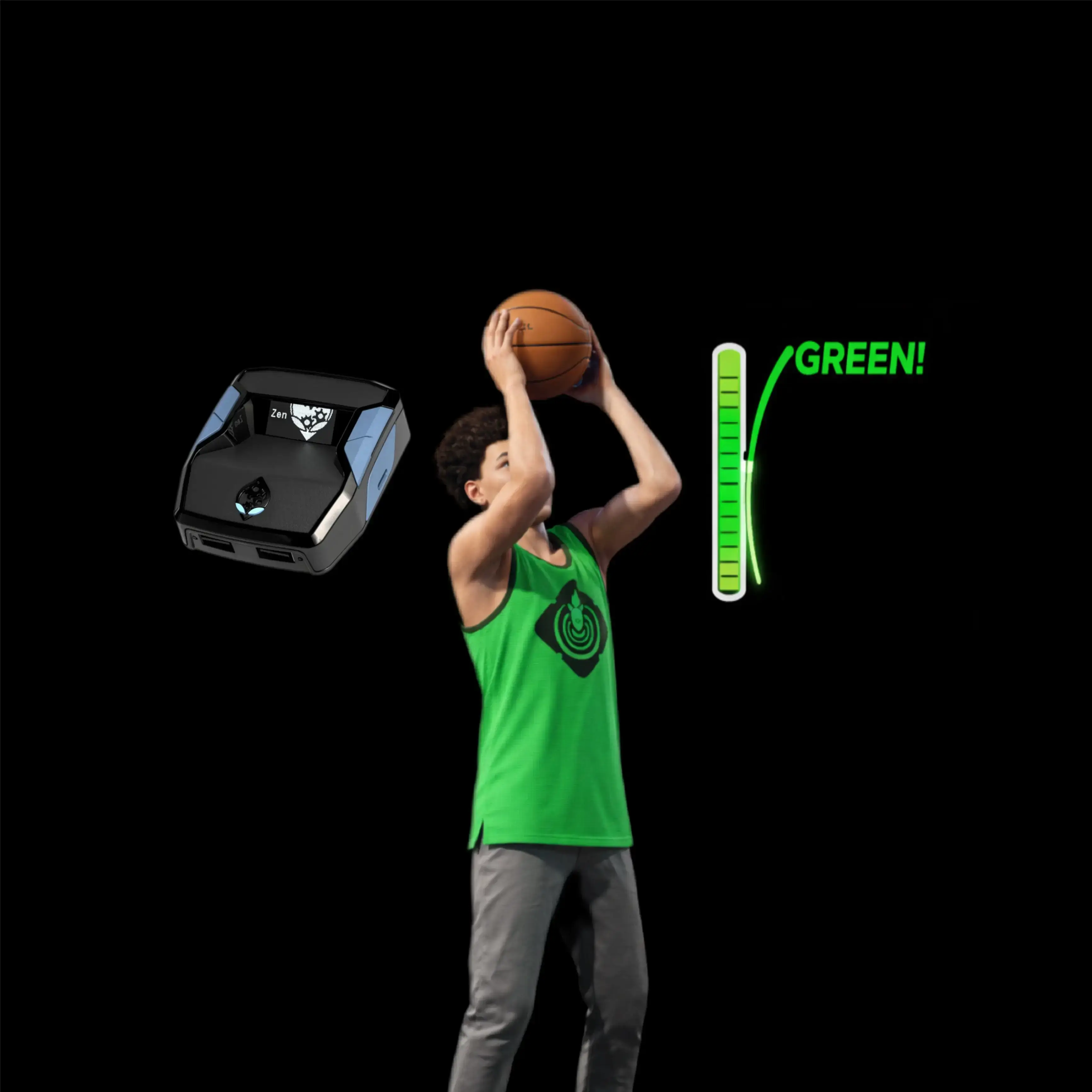











Hoops – NBA 2k26 Cronus Zen Script

Script details
- Game
- NBA 2k26
- Creator
 Yew
- Access
- ultimate
- Download format
- .GPC
- Supported platforms
- cross-platform
- Listing updated
Hoops is a NBA 2k26 Zen script by Yew. Explore its download and setup information below.
🏀 Hoops — Feature Overview
-
Enhanced Shooting
Built for consistency — green more shots with a 225%+ increase in success. Fully adjustable to match your jumper. -
Tempo Manipulation
Control shot tempo directly from your button for perfect rhythm-based releases. -
Offense
Offensive automation for faster breaks, smoother drives, and cleaner jumpers. Updated weekly. -
Defense
Sticky defense system with perimeter control and block support. Feels natural, not forced. -
Mod Menu
Toggle mods, edit values, and save your setup instantly — no delay, no clutter. -
Instant Access & Setup
Get started in under 5 minutes. No manual verification, instant download right after purchase. -
Device Lock
Script binds to your Cronus Zen — prevents sharing or resale. -
Weekly Updates & Tutorials
Constant updates, setup guides, and video tutorials included for all members. -
Customization
Request any feature from any script — we’ll add it. Available through YewScripts+. -
Extras
Lifetime access, free personalization, 1-on-1 support, and satisfaction guaranteed.
We built Hoops to be everything you need for NBA 2K26 — simple setup, reliable performance, and unmatched control on the court.
Features

Mod Menu

Recommended by us
Installation & setup
Follow these steps to install the GPC download on your Cronus Zen.
-
Download the script
Use the download button on this page and save the .gpc file to your computer.
-
Connect your Cronus Zen
Open Zen Studio Live in Chrome or Edge.
- Connect your Cronus Zen through the PROG port and select 'Connect Device'.
-
Open the script in the Editor tab
Drag the downloaded .gpc file into the 'Editor' tab.
-
Add the script to a device slot
Go to the Device tab, select MY SCRIPTS at the top right, then drag the chosen .gpc file into an empty slot.
-
Program the Cronus Zen
Click the flashing orange Program button at the top to save the script to your Zen.
-
Connect, select your slot and test
After programming finishes, connect the Zen to your console or PC using your platform’s connection setup. Select the installed script’s slot, then follow the creator’s button layout and starting values. Test before changing settings, and adjust one value at a time.
Need help with setup?
If the Zen is not detected, check the PROG connection and use a USB cable that supports data. If a GPC file fails to compile, check that the download is complete and that it supports your version of Zen Studio.
Hoops: common questions
How do I install Hoops?
This download is a GPC script. Follow the numbered instructions above to open it in Zen Studio, assign a device slot and program your Zen.
What access do I need for Hoops?
This script is listed in the ultimate library. Sign in with a plan that includes this tier; your download button shows the access available to your account.