
UNLOCK THE FULL ZEN SCRIPT LIBRARY
Access 2,200+ Scripts Today!

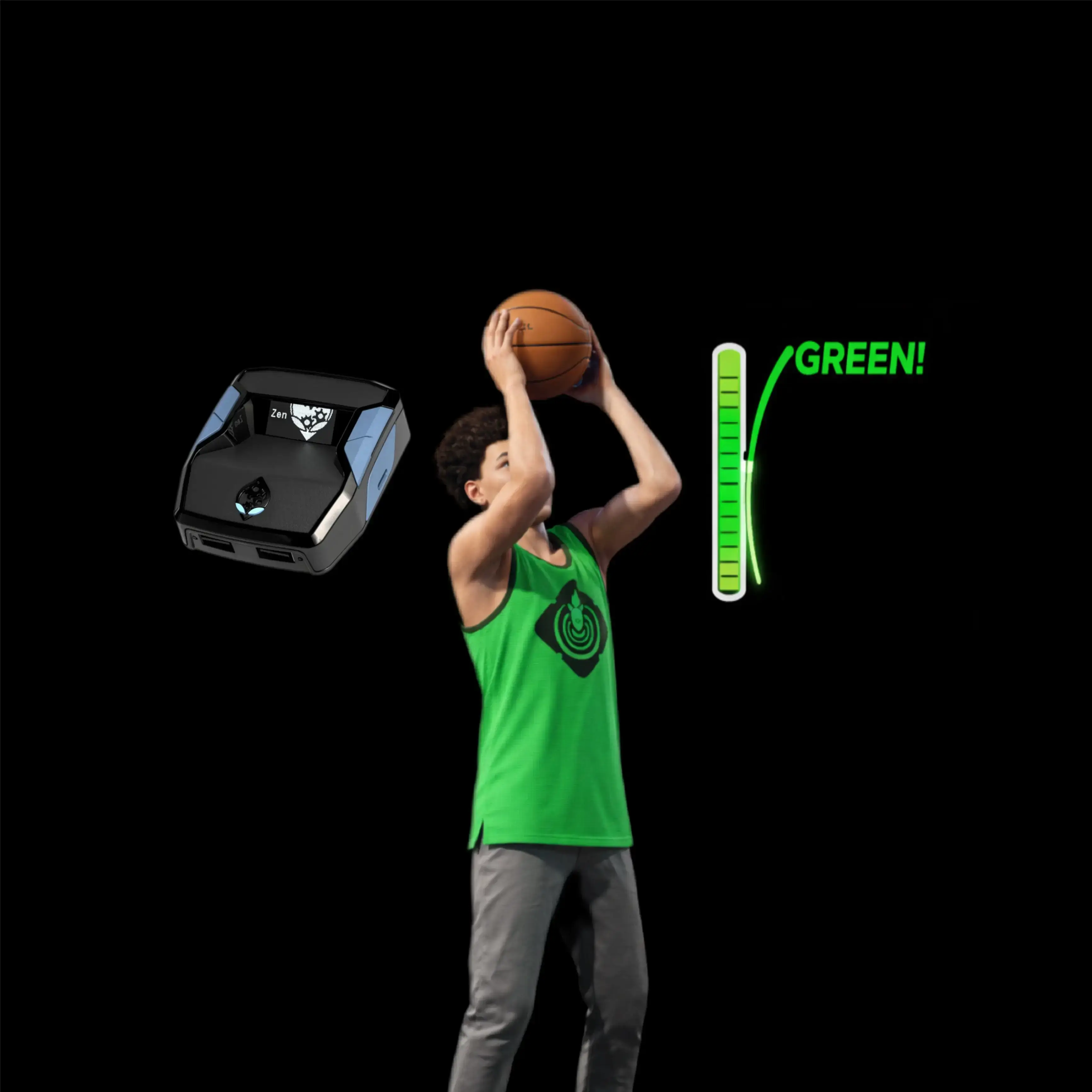









Slem V5 – NBA 2k26 Cronus Zen Script


Features

Mod Menu

Values

Guides
Guides
Shooting Modes
Only one shooting mode can be active at a time.
- TEMPO: Manual shot timing with automatic right-stick flick. Enabled by default.
- GREEN: Fully automatic shooting with configurable hold times.
- QS GREEN: Automatically stops movement before shooting.
Menu Controls
- LT + START: Open/close menu and save settings.
- LT + RT: Enter section or select.
- LT + RB: Go back.
- LT + UP/DOWN: Navigate settings.
- LT + LEFT/RIGHT: Adjust values.
- LT + RT + LEFT/RIGHT: Adjust values faster.
PlayStation: LT = L2, RT = R2, START = OPTIONS, X = Square, LB = L1, RB = R1.
TEMPO Settings
- ENABLE: ON (default)
- BUTTON: X / LB (default X)
- FLICK MS: 40
- HOLD MS: 150
- FADE SPLIT: OFF
- FLICK L MS: 70
- FLICK R MS: 69
- SPOT BTN: OFF / X / LB / LS / RS / B / RB
- SPOT MS: 700
- REMAP X: OFF / LS / RS
- LATENCY: 0
How to use:
- Hold the shooting button to drop the stick automatically.
- Release when the meter reaches the white line.
- The script performs the flick automatically.
Adjustments:
- Tempo fast → Increase FLICK MS.
- Tempo slow → Decrease FLICK MS.
- Timing late → Release earlier.
- Timing early → Release later.
Modes:
- SIMPLE: Uses standing-shot timing for most shots and right-fade timing for fades.
- SMART: Automatically selects between standing, moving and fading shot timings using controller inputs.
How it works:
- Automatically performs a quickstop using LT + right-stick flick down.
- Temporarily blocks movement and sprint inputs.
- Waits the configured duration before shooting.
- Automatically releases the shot after STAND MS.
Adjustments:
- Shooting before stopping → Increase WAIT.
- Stopping too long → Decrease WAIT.
Automatic Tuning
Each shooting mode has its own tuner.
- TUNE TEMPO: 9 shots (3 normal, 3 left fades, 3 right fades).
- TUNE GREEN: 15 shots (standing, moving left/right, fading left/right).
- TUNE QSGRN: 3 standing shots.
Instructions:
- Open the relevant TUNE section.
- Press LT + RT on START.
- Complete three shots of each requested type.
- Press A to save the calculated value or B to retry.
- The script automatically saves and restores your shooting mode.
LT + START: Abort tuning.
Movement Settings (MOVE)
- STAMINA: OFF / SAVER / MAX
- SAVER: Reduces stick input to 85%.
- MAX: Reduces stick input to 70%.
- DRIBBLE: ON / OFF (default OFF)
- DRIB SPD: 100
- MOVE SET: A / B / C
Defence Settings (DEF)
- CUTOFF: OFF / BOOST / MIRROR
Modes:
- BOOST: Increases right-stick cutoff strength by 30%.
- MIRROR: Mirrors left-stick movement onto the right stick.
Both activate only while holding LT + RT.
System Settings (SYS)
- HAND: RIGHT / LEFT
- LOADOUT: THEATRE / PARK / ANTE UP
- RUMBLE: OFF (default)
- STATIC: OFF (default)
- LED: Light-bar settings
- RESET: LT + RT to confirm
Additional Features:
- REMAP X: Maps the original X functionality to LS or RS for steals, layups and dunks.
- HAND: Adjusts shot-side detection for left-handed players.
- LOADOUT: Saves separate timing configurations for three game modes.
- LATENCY: Independent timing offset for each shooting mode.
- STATIC: Disables idle-screen animation.
Quick Setup
- Flash SLEM V5.0 onto your Cronus Zen.
- Allow the first boot to reset stored settings.
- Open the menu using LT + START.
- TEMPO is enabled by default.
- Navigate to TUNE TEMPO and start tuning.
- Complete 3 normal shots, 3 left fades and 3 right fades.
- Accept each calculated timing using A.
- Close the menu to save settings.
For fully automatic shooting, enable GREEN and run TUNE GREEN. For automatic quickstops, enable QS GREEN and run TUNE QSGRN.
Important: Shooting performance still depends on player attributes, badges, shot selection and in-game conditions. Fixed timing cannot account for every animation or contest.
Recommended Values
GREEN Settings
- ENABLE: OFF (default)
- BUTTON: X / LB
- STAND MS: 700
- MOVE L/R MS: 680
- FADE L/R MS: 850
- DEADZONE: 30
- FATIGUE: OFF / LOW / MED / HIGH
- MODE: SIMPLE / SMART (default SIMPLE)
- REMAP X: OFF / LS / RS
- LATENCY: 0
Tuning:
- Late shots → Lower MS.
- Early shots → Increase MS.
- Start with SIMPLE before switching to SMART.
QS GREEN Settings
- ENABLE: OFF (default)
- BUTTON: X / LB
- STAND MS: 740
- WAIT: 260
- REMAP X: OFF / LS / RS
- LATENCY: 0
Installation & setup
Follow these steps to install the GPC download on your Cronus Zen.
-
Download the script
Use the download button on this page and save the .gpc file to your computer.
-
Connect your Cronus Zen
Open Zen Studio Live in Chrome or Edge.
- Connect your Cronus Zen through the PROG port and select 'Connect Device'.
-
Open the script in the Editor tab
Drag the downloaded .gpc file into the 'Editor' tab.
-
Add the script to a device slot
Go to the Device tab, select MY SCRIPTS at the top right, then drag the chosen .gpc file into an empty slot.
-
Program the Cronus Zen
Click the flashing orange Program button at the top to save the script to your Zen.
-
Connect, select your slot and test
After programming finishes, connect the Zen to your console or PC using your platform’s connection setup. Select the installed script’s slot, then follow the creator’s button layout and starting values. Test before changing settings, and adjust one value at a time.
Need help with setup?
If the Zen is not detected, check the PROG connection and use a USB cable that supports data. If a GPC file fails to compile, check that the download is complete and that it supports your version of Zen Studio.
Slem V5: common questions
How do I install Slem V5?
This download is a GPC script. Follow the numbered instructions above to open it in Zen Studio, assign a device slot and program your Zen.
What access do I need for Slem V5?
This script is listed in the ultimate library. Sign in with a plan that includes this tier; your download button shows the access available to your account.
Where can I find settings for Slem V5?
The creator’s guide is included on this page. The Recommended Values section contains the creator’s starting values. Sign in with the required access to view them, and match the script to your in-game settings before making adjustments.