
ACCÉDEZ À TOUTE LA BIBLIOTHÈQUE DE SCRIPTS ZEN
Accès 2 200+ scripts dès aujourd’hui !

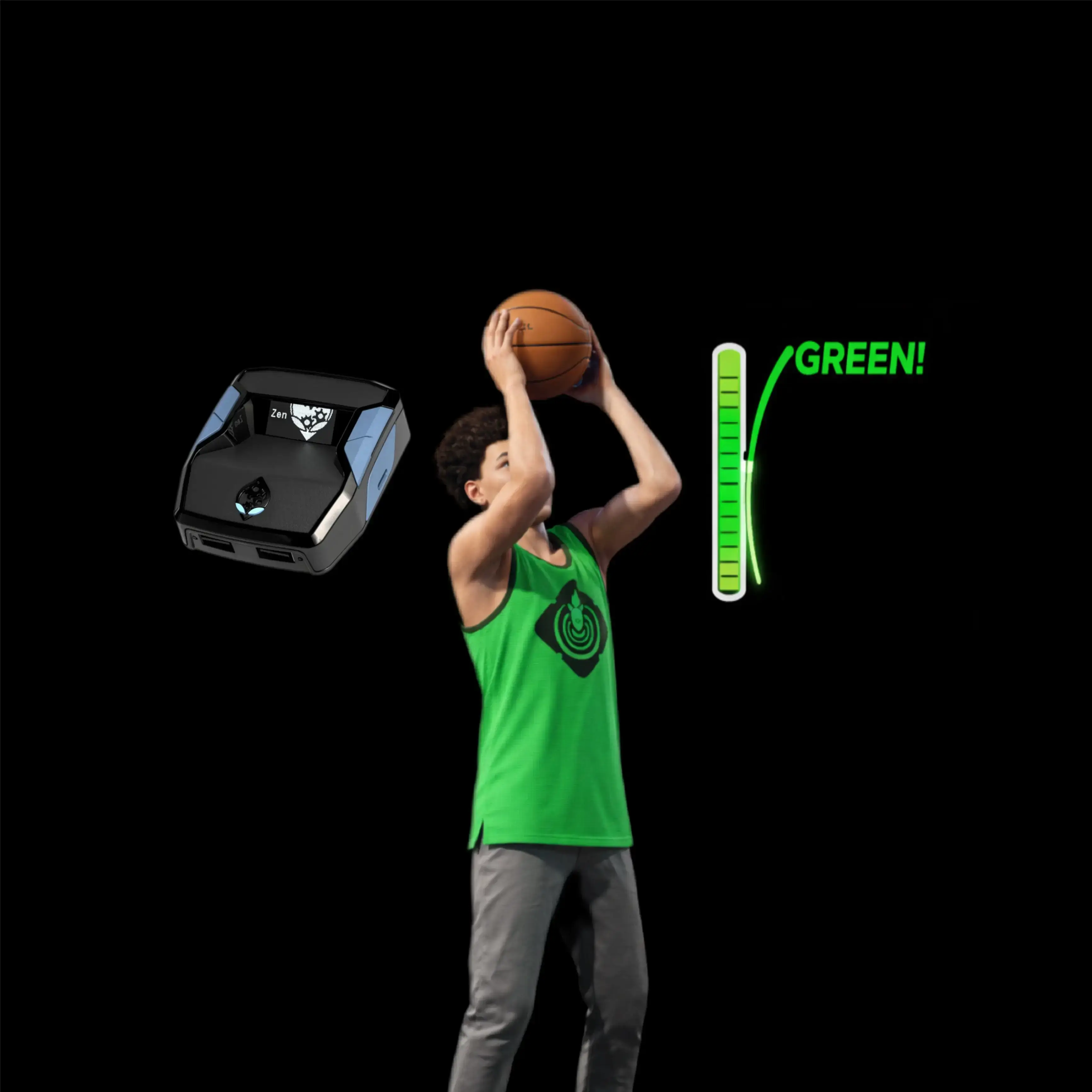











Saint V2.2 : script Cronus Zen pour NBA 2k26

Détails du script
- Jeu
- NBA 2k26
- Créateur
 Saint Scripts
- Accès
- Basic
- Format du téléchargement
- .GPC
- Plateformes compatibles
- Multiplateforme
- Version
- V2.2
- Fiche mise à jour
Saint V2.2 est un script Zen pour NBA 2k26 créé par Saint Scripts. Consultez les informations de téléchargement et de configuration ci-dessous.
Ce script Cronus Zen pour Nba 2k26 est développé par Saint.
Mods inclus :
- Auto Green
- Arrêt rapide automatique
- Defense Assist
- Boost de défense
- No Dip Shot
- Square Rhythm
- Tempo Shooting
La version la plus récente et optimisée de ce script est disponible avec une formule supérieure. Cliquez ici pour voir les options d'abonnement.
Fonctionnalités

Menu des mods

Guides
Guides
Menu Lock
Locking the menu does not disable the script. It simply gives you normal control of your buttons again.
Press L2 + Options on any screen to lock or unlock the menu. This is useful if you frequently switch pages or change settings.
Page Switching
- Next page: L2 + R1
- Previous page: L2 + L1
RHYTHM SHOOTING WITH SQUARE/X
Page 1: Rhythm Shooting Toggle
Page 1 allows you to turn Rhythm Shooting on or off.
Hold Square/X and release it at the Set Point. The script will automatically move the right stick for you.
You must still time the shot correctly. Rhythm Shooting will be most accurate when your manual release timing is good.
Rhythm Shooting generally takes longer to begin than normal shooting. For shots with a tight timing window, use your remapped normal shooting button instead.
Page 2: Tempo Timing
Page 2 allows you to adjust your Tempo Timing value.
The correct value will be different for every jumpshot, so you will need to take practice shots and adjust it.
Release your shot at the Set Point cue for perfect timing. Your normal jumpshot release cue does not matter when using Rhythm Shooting.
The tempo window for a well-timed jumpshot is approximately 120 milliseconds.
Slightly Slow
- You are most likely releasing the shot too late.
- If changing your release timing does not fix it, decrease the Tempo Timing value.
Slightly Fast
- You are most likely releasing the shot too early.
- If changing your release timing does not fix it, increase the Tempo Timing value.
CATCH AND SHOOT AUTO TIMING
Page 3: Catch and Shoot Timing
Set both your Tempo Timing and Catch and Shoot Timing values before using this feature in a game.
- Go to MyCourt and join a friend's server.
- Turn the shot meter on.
- Hold Up on the D-Pad + Square/X to activate the feature.
- Adjust the Catch and Shoot Timing value on Page 3 based on the result.
- Shot is late: Decrease the timing value.
- Shot is early: Increase the timing value.
ORIGINAL SQUARE/X REMAPPING
Page 4: Normal Button Functionality
When Rhythm Shooting is enabled, Square/X is remapped.
Page 4 allows you to choose either L1 or R3 for normal Square/X actions, including:
- Reaching
- Layups
- Dunks
- Other standard Square/X actions
STEALTH MODE JUMPSHOT
Page 5: Timing Variation
When enabled, Stealth Mode varies both your Tempo Timing and Catch and Shoot Timing by up to ±3 milliseconds.
This small variation is intended to reduce detection risk and should not cause missed shots. Misses are more likely to be caused by incorrect manual shot timing.
AUTO QUICKSTOP
Page 6: Quickstop Shooting
While moving in any direction with the left stick, hold Square/X.
The script will perform a quickstop and begin the shooting motion. You must still manually time the release of your shot.
DEFENSE BOOST
Page 7: Defensive Movement Boost
When enabled, Defense Boost increases your movement in the direction you are holding the left stick while:
- Holding L2/LT
- Pressing or holding R1/RB
Be careful with your left-stick direction. Poor stick control can cause the script to boost you in the wrong direction.
TIMING ADJUSTMENTS
Tempo Timing
- Increase by 1: L2/LT + Up
- Decrease by 1: L2/LT + Down
- Increase by 5: L2/LT + Right
- Decrease by 5: L2/LT + Left
Catch and Shoot Timing
- Increase by 1: L2/LT + Up
- Decrease by 1: L2/LT + Down
- Increase by 10: L2/LT + Right
- Decrease by 10: L2/LT + Left
Installation et configuration
Suivez ces étapes pour installer le fichier GPC téléchargé sur votre Cronus Zen.
-
Téléchargez le script
Utilisez le bouton de téléchargement de cette page et enregistrez le fichier .gpc sur votre ordinateur.
-
Connectez votre Cronus Zen
Ouvrez Zen Studio Live dans Chrome ou Edge.
- Connectez votre Cronus Zen par le port PROG et sélectionnez « Connect Device ».
-
Ouvrez le script dans l'onglet Éditeur
Faites glisser le fichier .gpc téléchargé dans l'onglet « Éditeur ».
-
Ajouter le script à un emplacement de périphérique
Allez dans l'onglet Appareil, sélectionnez MES SCRIPTS en haut à droite, puis faites glisser le fichier .gpc choisi dans un emplacement vide.
-
Programmer le Cronus Zen
Cliquez sur le bouton Programme orange clignotant en haut pour enregistrer le script sur votre Zen.
-
Connectez, sélectionnez votre emplacement et testez
Une fois la programmation terminée, connectez le Zen à votre console ou PC en suivant la procédure adaptée à votre plateforme. Sélectionnez l’emplacement du script installé, puis suivez la configuration des touches et les valeurs de départ du créateur. Testez avant de modifier les réglages et ajustez une seule valeur à la fois.
Besoin d’aide pour la configuration ?
Si le Zen n’est pas détecté, vérifiez la connexion PROG et utilisez un câble USB permettant le transfert de données. Si un fichier GPC ne se compile pas, vérifiez que le téléchargement est complet et que le fichier est compatible avec votre version de Zen Studio.
Saint V2.2 : questions fréquentes
Comment installer Saint V2.2 ?
Ce téléchargement est un script GPC. Suivez les étapes numérotées ci-dessus pour l’ouvrir dans Zen Studio, l’affecter à un emplacement et programmer votre Zen.
Quel accès faut-il pour Saint V2.2 ?
Ce script figure dans la bibliothèque basic. Connectez-vous avec une offre qui inclut ce niveau ; le bouton de téléchargement indique l’accès disponible pour votre compte.
Où trouver les réglages de Saint V2.2 ?
Le guide du créateur figure sur cette page. La section Valeurs recommandées contient ses valeurs de départ. Connectez-vous avec l’accès requis pour les consulter et adaptez le script à vos réglages en jeu avant toute modification.