ACCÉDEZ À TOUTE LA BIBLIOTHÈQUE DE SCRIPTS ZEN
Accès 2 200+ scripts dès aujourd’hui !













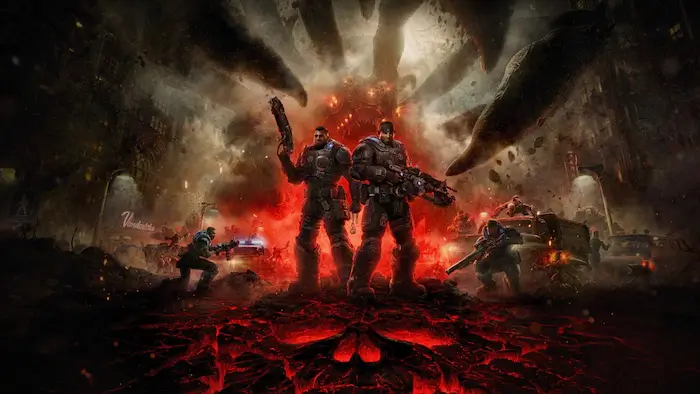
CZC E-Day : script Cronus Zen pour Gears of War: E-day
Détails du script
- Créateur
 Cronus Zen Central
- Accès
- Premium
- Format du téléchargement
- .GPC
- Plateformes compatibles
- Multiplateforme
- Fiche mise à jour
CZC E-Day est un script Zen pour Gears of War: E-day créé par Cronus Zen Central. Consultez les informations de téléchargement et de configuration ci-dessous.
Use the game's Default controller layout, with Toggle Aim OFF et notre Toggle Sprint OFF. Button names below use Xbox controls.
To change mod settings, hold LT and tap Menus. Release LT, use D-pad Up/Down to select a mod, and Left/Right to change its mode. Press A to edit its values. Hold LT + D-pad Right/Left to increase/decrease a value by 1, or LT + Up/Down to change it by 10. Release LT and use Up/Down to select another value. Press B to return, then B again to exit and save.
Tenir LT + View to pause or resume the script.
Anti Recoil
Adds stick compensation to reduce weapon kick while you hold LT + RT. Larger manual right-stick movements take priority over the compensation.
Ajuster Force de la RA to suit your weapon and sensitivity. It starts at 20, with a menu range of 1–99. Increase it gradually if your aim climbs while firing; decrease it if your aim pulls downward.
For live adjustments, hold RS and tap:
- D-pad Up/Down: increase/decrease vertical compensation.
- D-pad Right/Left: increase/decrease horizontal compensation.
There are no automatic weapon profiles. Retune the settings when changing weapons or sensitivity.
Aim Assist
Uses the ARC Raiders aim-assist patterns to add small right-stick movements while you hold LT or RT. It also activates when firing without aiming.
Ajuster AA Strength to change the movement size. It starts at 10, with a menu range of 1–50. Reduce it or disable the mod if it causes unwanted camera movement or makes aiming harder.
Rapid Fire
Repeatedly presses and releases RT while you hold the trigger. It starts désactivé. Choose one of these modes:
- Disable: normal trigger behaviour.
- Fire Only: repeated fire while RT is held and LT is released.
- ADS & Fire: repeated fire while both LT and RT are held.
- On Fire: repeated fire whenever RT is held, with or without aiming.
RF Hold controls the press duration and starts at 20 ms. RF Release controls the gap and starts at 30 ms. Both can be adjusted from 1–1000 ms.
Release RT to stop. Tune the timings for the weapon; shorter delays do not bypass its fire-rate limit and can cause missed inputs. Disable the mod when normal held fire works better.
Hair Triggers
Makes a small registered pull of LT or RT produce a strong trigger output. Enable it if you want aiming and firing to respond without a full trigger pull.
It starts ACTIVÉ, has no adjustable settings, and does not increase the weapon's fire rate.
No Vibration
Blocks controller rumble during active gameplay. Turn it on if you prefer playing without vibration.
It starts ACTIVÉ and has no adjustable settings. Menu feedback may still produce vibration.
Auto Sprint
Automatically sends the sprint input when you push the left stick at least 90% forward. You do not need to click LS yourself.
It stops adding sprint while you hold LT, RT, RS, A, B, X, Y or RB, giving those actions priority. Ease off the left stick to stop requesting automatic sprint. If you keep the stick fully forward, sprint can resume after you release the other action.
Keep Toggle Sprint OFF in the game. Auto Sprint starts ACTIVÉ. In the current script, changes to this toggle are not saved, so check it again after reloading the script.
Burst Fire
Alternates held fire and released fire while you hold LT + RT. It starts DE RÉDUCTION. Adjust Temps de maintien for how long each burst fires, and Release Time for the pause between bursts. Both start at 120 ms and can be adjusted from 1–1000 ms. Release either trigger to stop.
The mod controls timing, not a fixed bullet count. The number of shots depends on the weapon.
If Rapid Fire and Burst Fire are both enabled, Burst Fire takes priority while aiming. Rapid Fire can still operate without aiming if its selected mode allows it. Enable only one at a time when tuning.
Auto Ping
Automatically taps LS to attempt a target mark while you hold LT + RT. Aim at the enemy or location you want to mark; the script does not find targets for you.
It starts ACTIVÉ. Automatic marking begins after LT has been held for at least 100 ms, then repeats roughly every 250 ms while the conditions remain met.
Release aim or fire to stop. Automatic marking also stops while you physically hold LS or RS. The RS restriction prevents the script from adding LS to a held RS input and accidentally requesting Tactical Gear.
Fonctionnalités

Menu des mods

Notre recommandation
Installation et configuration
Suivez ces étapes pour installer le fichier GPC téléchargé sur votre Cronus Zen.
-
Téléchargez le script
Utilisez le bouton de téléchargement de cette page et enregistrez le fichier .gpc sur votre ordinateur.
-
Connectez votre Cronus Zen
Ouvrez Zen Studio Live dans Chrome ou Edge.
- Connectez votre Cronus Zen par le port PROG et sélectionnez « Connect Device ».
-
Ouvrez le script dans l'onglet Éditeur
Faites glisser le fichier .gpc téléchargé dans l'onglet « Éditeur ».
-
Ajouter le script à un emplacement de périphérique
Allez dans l'onglet Appareil, sélectionnez MES SCRIPTS en haut à droite, puis faites glisser le fichier .gpc choisi dans un emplacement vide.
-
Programmer le Cronus Zen
Cliquez sur le bouton Programme orange clignotant en haut pour enregistrer le script sur votre Zen.
-
Connectez, sélectionnez votre emplacement et testez
Une fois la programmation terminée, connectez le Zen à votre console ou PC en suivant la procédure adaptée à votre plateforme. Sélectionnez l’emplacement du script installé, puis suivez la configuration des touches et les valeurs de départ du créateur. Testez avant de modifier les réglages et ajustez une seule valeur à la fois.
Besoin d’aide pour la configuration ?
Si le Zen n’est pas détecté, vérifiez la connexion PROG et utilisez un câble USB permettant le transfert de données. Si un fichier GPC ne se compile pas, vérifiez que le téléchargement est complet et que le fichier est compatible avec votre version de Zen Studio.
CZC E-Day : questions fréquentes
Comment installer CZC E-Day ?
Ce téléchargement est un script GPC. Suivez les étapes numérotées ci-dessus pour l’ouvrir dans Zen Studio, l’affecter à un emplacement et programmer votre Zen.
Quel accès faut-il pour CZC E-Day ?
Ce script figure dans la bibliothèque premium. Connectez-vous avec une offre qui inclut ce niveau ; le bouton de téléchargement indique l’accès disponible pour votre compte.