
ACCÉDEZ À TOUTE LA BIBLIOTHÈQUE DE SCRIPTS ZEN
Accès 2 200+ scripts dès aujourd’hui !

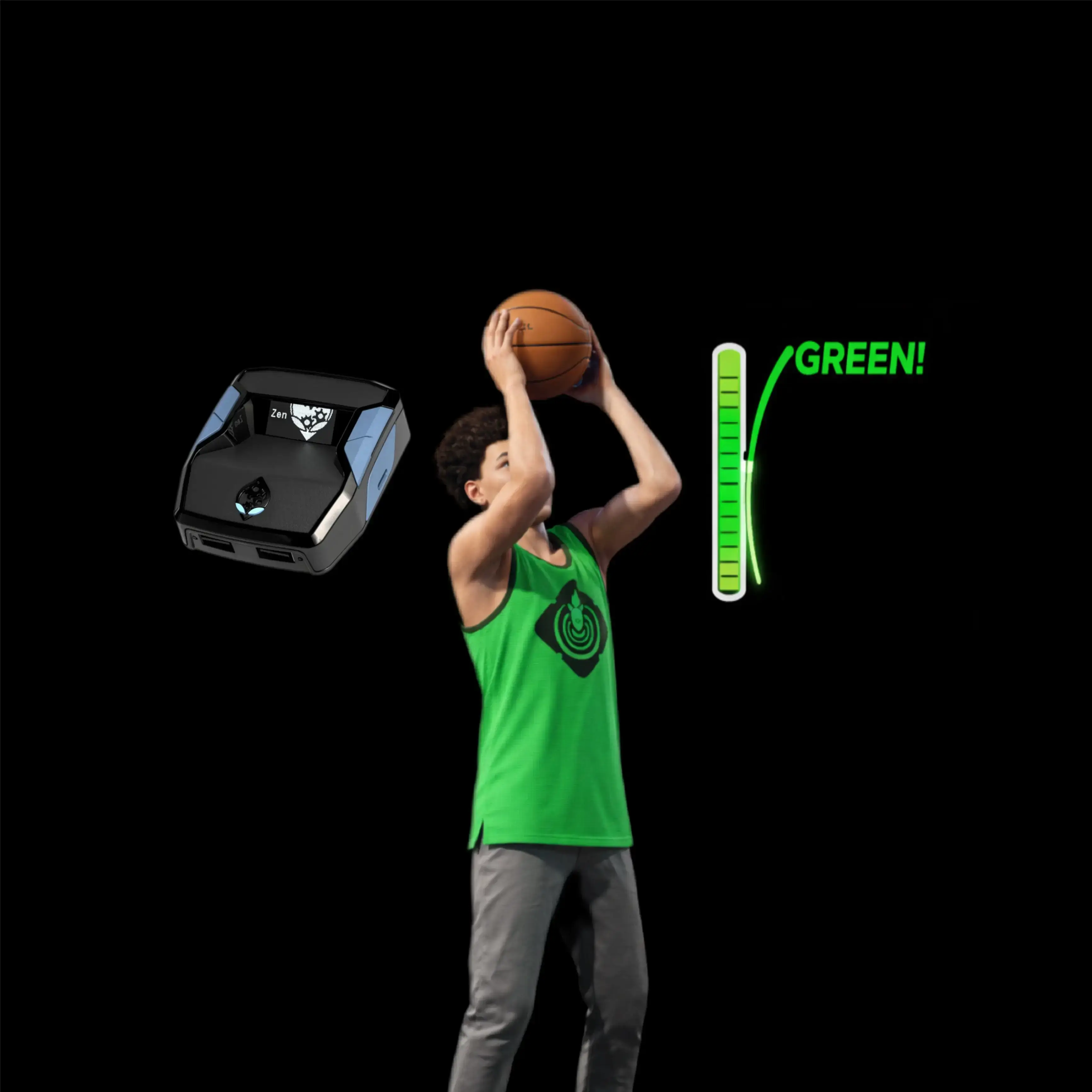









Legacy V7 : script Cronus Zen pour NBA 2k26

Détails du script
- Jeu
- NBA 2k26
- Créateur
 FeatureZens
- Accès
- Ultimate
- Format du téléchargement
- .GPC
- Plateformes compatibles
- Multiplateforme
- Version
- V7
- Fiche mise à jour
Legacy V7 est un script Zen pour NBA 2k26 créé par FeatureZens. Consultez les informations de téléchargement et de configuration ci-dessous.
Ce script Cronus Zen pour NBA 2k26 est développé par Feature Zens.
Fonctionnalités

Guides

Menu des mods

Plusieurs versions
Guides
Accessing the Legacy Mod Menu
For PlayStation:
-
Hold down L2
-
While holding L2, press OPTIONS
For Xbox:
-
Hold down LT
-
While holding LT, press MENU
These key combinations will bring up the Legacy Mod Menu, allowing you to customize the script with ease.
🎮 Button Behavior
-
When enabled, your SQ / X button gets remapped to perform a rhythm shot using RS down
-
As soon as you release the button, the script waits based on your Tempo Wait Time, then flicks RS up to simulate a full shot
-
You must still time your release — this just helps automate the motion
🔁 Button Remap (Page 1)
Since X is used to trigger a rhythm shot, you can remap it to another button for normal functions like dunking, stealing, etc.
Options:
-
R3 / RS IN
-
L1 / LB
Choose whichever one feels more natural. This way, you can still dunk, steal, etc., while using rhythm shooting.
⏱️ Tempo Wait Time (Page 3)
Controls how long the script waits before pushing RS up after the RS down motion.
-
Value is in milliseconds (ms)
How to Tune It:
-
If your shot says “Slightly Fast” consistently → Increase the wait time
-
If your shot says “Slightly Late” consistently → Decrease the wait time
Tempo timing is different from your in-game jumpshot cue. This will take some practice to get right.
Simulate Online Latency (MyCourt Server Trick)
-
Go into your MyCourt
-
Open your Friends List by holding L1 + R1 (PS) or LB + RB (Xbox)
-
Click any friend and hit "Connect to Server"
-
Once the option disappears, close the menu — you're now simulating online latency in MyCourt
Set Difficulty to Match Online Games
-
After entering the court, press OPTIONS (PS) or MENU (XB)
-
Look at the top of the screen above Continue
-
Press R3 (PS) or RS IN (XB) to toggle slider presets. If you're using X/Square to shoot, you won’t be able to press R3 — turn the mod OFF temporarily to change difficulty
How to Find Your Release Cue
-
Make sure Shot Feedback is turned ON
-
Take a few rhythm shots using the script
-
Pay attention to your timing results:
Slightly Early / Slightly Fast = You’re releasing too soon
Slightly Late / Slightly Slow = You’re releasing too late
How to Tune Your Tempo Wait Time
If your feedback is consistently slightly off, adjust your Tempo Wait Time:
-
Slightly Fast? → Increase your wait time
-
Slightly Slow? → Decrease your wait time
The goal is to hit the center of the green window, not the edge where your make rate drops to around 40%.
Installation et configuration
Suivez ces étapes pour installer le fichier GPC téléchargé sur votre Cronus Zen.
-
Téléchargez le script
Utilisez le bouton de téléchargement de cette page et enregistrez le fichier .gpc sur votre ordinateur.
-
Connectez votre Cronus Zen
Ouvrez Zen Studio Live dans Chrome ou Edge.
- Connectez votre Cronus Zen par le port PROG et sélectionnez « Connect Device ».
-
Ouvrez le script dans l'onglet Éditeur
Faites glisser le fichier .gpc téléchargé dans l'onglet « Éditeur ».
-
Ajouter le script à un emplacement de périphérique
Allez dans l'onglet Appareil, sélectionnez MES SCRIPTS en haut à droite, puis faites glisser le fichier .gpc choisi dans un emplacement vide.
-
Programmer le Cronus Zen
Cliquez sur le bouton Programme orange clignotant en haut pour enregistrer le script sur votre Zen.
-
Connectez, sélectionnez votre emplacement et testez
Une fois la programmation terminée, connectez le Zen à votre console ou PC en suivant la procédure adaptée à votre plateforme. Sélectionnez l’emplacement du script installé, puis suivez la configuration des touches et les valeurs de départ du créateur. Testez avant de modifier les réglages et ajustez une seule valeur à la fois.
Besoin d’aide pour la configuration ?
Si le Zen n’est pas détecté, vérifiez la connexion PROG et utilisez un câble USB permettant le transfert de données. Si un fichier GPC ne se compile pas, vérifiez que le téléchargement est complet et que le fichier est compatible avec votre version de Zen Studio.
Legacy V7 : questions fréquentes
Comment installer Legacy V7 ?
Ce téléchargement est un script GPC. Suivez les étapes numérotées ci-dessus pour l’ouvrir dans Zen Studio, l’affecter à un emplacement et programmer votre Zen.
Quel accès faut-il pour Legacy V7 ?
Ce script figure dans la bibliothèque ultimate. Connectez-vous avec une offre qui inclut ce niveau ; le bouton de téléchargement indique l’accès disponible pour votre compte.
Où trouver les réglages de Legacy V7 ?
Le guide du créateur figure sur cette page. Connectez-vous avec l’accès requis pour les consulter et adaptez le script à vos réglages en jeu avant toute modification.